The Complete Guide to Compressing PDF Files for Free
Ever tried to email a PDF and got hit with "attachment too large"? Or watched a college portal reject your scanned notes because the file crossed some invisible size limit? You're not alone — it happens to almost everyone at some point, and honestly, it's more annoying than it should be.
The good news is you don't need expensive software to fix it. A PDF can usually be shrunk quite a bit without touching what's actually written on the page. Let's talk about why PDFs get bloated in the first place, and what you can actually do about it.
Why Do PDFs Get So Big?
A PDF isn't really one solid file — it's more like a bundle of smaller pieces: text streams, fonts, images, and a table that tells a PDF reader where everything is. When a PDF is created quickly (say, exported straight from Word, or scanned on an office printer), some of those pieces aren't compressed at all. That's where the extra megabytes sneak in.
Images are usually the biggest culprit. A scanned page saved at high resolution can weigh several megabytes on its own. But even in text-heavy PDFs, uncompressed content streams can add up across dozens of pages.
Does Compressing a PDF Ruin the Quality?
This is probably the question people worry about most, and it's a fair one. The honest answer: it depends on the method. Aggressive compressors that downsample images can leave text looking blurry or fonts looking off. A better approach targets only the parts of the file that are genuinely uncompressed — things like raw text streams — and leaves the visible content untouched.
That's exactly the approach our free tool takes. It scans the file for streams that don't already carry a compression filter, compresses just those, and rewrites the file safely. If your PDF is already optimized (which happens more often than you'd think), it'll tell you honestly instead of pretending to shrink something that's already tight.
When Should You Actually Compress a PDF?
- Before emailing an invoice, contract, or resume that keeps bouncing back
- Before uploading to a portal with a strict file size cap
- Before sharing a portfolio or deck as a downloadable link
- When storage space matters and you're archiving old documents
Step-by-Step: How to Compress a PDF Online
Here's the simplest path, using our browser-based tool:
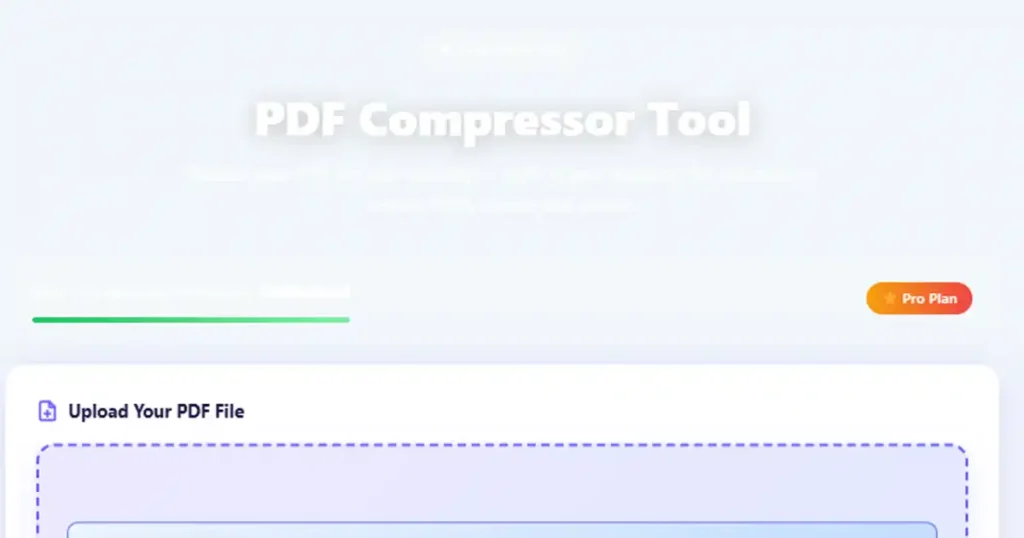
- Open the Compress PDF tool and upload your file
- Click the Compress PDF button and let it process
- Check the before-and-after size shown on screen
- Download the compressed version straight to your device
No sign-up wall, no software install, and your file never leaves your browser while it's being processed.
What About Desktop Software?
Tools like Adobe Acrobat do offer PDF compression too, and they're solid options if you already have a subscription. But for a quick, occasional job — like shrinking one invoice before hitting send — installing (or paying for) desktop software is overkill. A browser tool gets you there faster.
A Quick Note on Password-Protected PDFs
If your PDF is encrypted, most safe compressors — including ours — will leave it untouched rather than risk corrupting it. If you need to compress a protected file, remove the password first (with the file's original owner's permission, of course), then compress it.
Try the Free Compress PDF Tool
Shrink your PDF file size in seconds, right in your browser.
Compress a PDF Now →PDF Compression, In Your Language
We recommend keeping this guide handy — here's a one-line summary in a few languages:
The Takeaway
You don't need to be a tech expert to fix an oversized PDF. In most cases, a quick pass through a browser tool is all it takes — no installs, no uploads to a stranger's server, and no waiting around. Bookmark this page for the next time a file gets rejected for being "too large."
Recommended Hosting
Hostinger
If you are building a website for your tools, blog, or store, reliable hosting matters for speed and uptime. Hostinger is a popular option used worldwide.
Visit Hostinger →Disclosure: This is a sponsored link.
Get in Touch
Related Tools You May Like
🚀 Need Higher Limits?
- ✔ 400+ Tools
- ✔ AI Tools Included
- ✔ JS Tools 15 → 100 Uses/Day
- ✔ AI Tools 7 → 70 Uses/Day
- ✔ All AI Modes Unlocked
- ✔ 14 Exclusive Pro-only Tools